

The Case Against Dual Booting: Why WSL Is the Smarter Choice
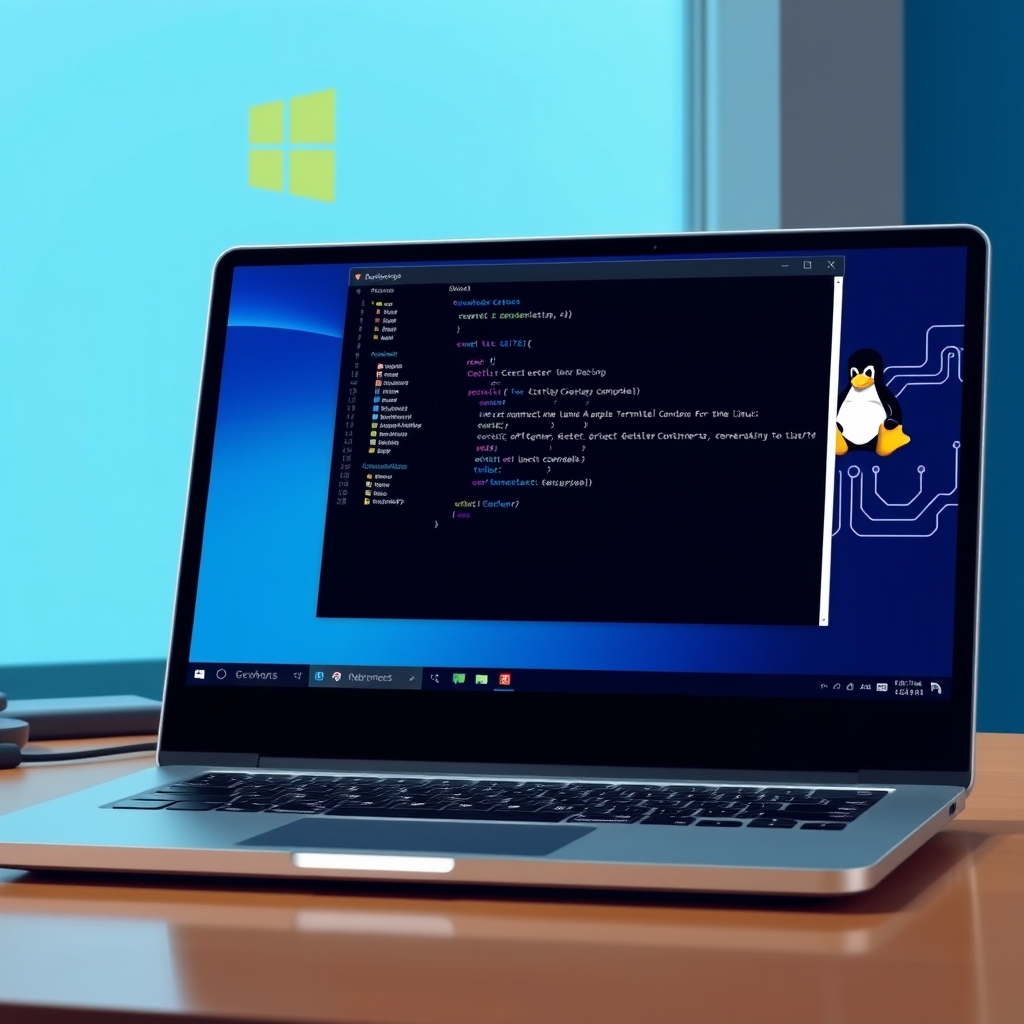
If you still reboot to switch OSes, you're paying a productivity tax. Dual booting is outdated. Windows Subsystem for Linux (WSL) is the modern solution: a compatibility layer running full Linux distributions natively on Windows.
Context Switching Kills Flow Every reboot fragments focus. Waiting for a second OS breaks creative rhythm and wastes time. WSL keeps you in Windows while providing instant access to a genuine Linux terminal, preserving your flow state.
Efficiency Over Overhead Separate OS instances waste resources. WSL runs Linux side-by-side with Windows, sharing resources dynamically with minimal overhead. You gain Linux power without the performance hit of heavy VMs or dedicated partitions.
Isolation and Safety Dual booting risks your machine. Bootloader failures or partition corruption can brick your Windows install. WSL offers robust isolation. Your Linux environment is sandboxed; misconfigurations stay contained, keeping your Windows partition safe.
The Hybrid Developer Reality Modern full-stack and DevOps workflows demand hybrid fluency. You need Linux tools for containers alongside Windows apps for enterprise tasks. WSL grants simultaneous access to both ecosystems, aligning your local setup with production environments without management headaches.
Upgrade your workflow. WSL delivers the speed, safety, and integration dual booting can only dream of. To fully appreciate why it has rapidly become the industry standard, however, it helps to look under the hood at how it actually works.
WSL 1 vs. WSL 2: Understanding the Architecture
Choosing between WSL 1 and WSL 2 hinges on understanding their fundamental architectural differences. WSL 1 operates as a translation layer, converting Linux system calls into native Windows calls in real time. This emulation approach is lightweight and ideal for simple shell access, running isolated Linux binaries, or maintaining legacy compatibility where a full kernel isn’t required.
WSL 2 takes a different approach by running a genuine Linux kernel inside a highly optimized, lightweight utility virtual machine (VM). This architecture enables complete compatibility with native Linux system calls, dramatically improving Input/Output (I/O) performance for file-heavy operations. It also provides full support for modern development standards like Docker and systemd (a system and service manager that initializes user space and background services).
When evaluating performance metrics, the distinction becomes clear. While WSL 1 consumes less memory at idle, WSL 2 boasts significantly faster boot times and excels in I/O-heavy workloads. Cross-filesystem operations—such as compiling code or processing large datasets—run markedly quicker in WSL 2 because it avoids the translation overhead that bottlenecks WSL 1. Memory usage in WSL 2 is dynamically managed and can be capped via configuration, effectively mitigating past resource concerns.
For nearly every modern developer, WSL 2 is the unequivocal choice. It has become the industry default, powering over 95% of contemporary Windows development workflows. The combination of native kernel support, robust containerization compatibility, and superior performance makes it the only logical standard. Start with WSL 2 unless you’re maintaining highly specific legacy tooling that strictly requires WSL 1’s translation layer. With the architectural advantages clear, the next step is bringing that power to your machine.
Getting Started: Installing and Configuring WSL in Minutes
Ready to transform your workflow? You can have a fully functional Linux environment in under five minutes. Follow these steps to get up and running on Windows 10 or 11.
One-Line Installation
Open PowerShell or Command Prompt as Administrator and execute:
wsl --install
This command installs WSL 2, enables required Windows features, and sets up a default distribution. Restart your computer when prompted to complete the setup.
Choosing Your Distribution
Upon reboot, launch your default distro. To add more options, visit the Microsoft Store or run wsl --install -d <DistroName>. Pick based on your needs:
- Ubuntu: The developer favorite. Vast community support and excellent compatibility.
- Debian: Minimalist and rock-solid stability.
- Kali Linux: Specialized toolkit for security and penetration testing.
- Alpine: Ultra-lightweight and ideal for container-centric workflows.
Essential Configuration
Your first launch prompts you to create a UNIX username and password; this becomes your local sudo account. Keep your environment current by running wsl --update in Windows PowerShell. This ensures the WSL kernel and components remain secure. Basic file permissions operate via standard Linux commands like chmod and chown.
Post-Install Essentials
Supercharge your shell immediately. Open your Linux terminal and update packages:
sudo apt update && sudo apt upgrade -y
Note: Use apk for Alpine or dnf for RPM-based distros.
Install core development tools next:
sudo apt install git curl build-essential -y
You're now ready to install language runtimes and start coding with a seamless hybrid environment! Once your distribution is up and running, the real magic begins when you start bridging the gap between your host OS and your Linux tools.
Seamless Integration: Unifying Windows and Linux Tools
WSL dissolves the boundary between operating systems, allowing you to leverage the best of both worlds without compromise.
File System Interoperability
Navigate effortlessly across ecosystems. Access your Linux home directory directly in Windows Explorer via the \wsl$ path or the sidebar, enabling drag-and-drop workflows and instant file launches in Windows apps. Conversely, mount Windows drives at /mnt/c within the Linux terminal to edit scripts or view documents without ever leaving your shell.
GUI Application Support Ditch the X server. WSLg enables native rendering of Linux graphical applications directly on your Windows desktop. Run tools like GIMP, Inkscape, or Linux-native IDEs seamlessly, with automatic clipboard sharing and display integration, making visual workflows feel completely at home.
IDE Superpowers Bridge your editor with your backend. VS Code's Remote-WSL extension connects to your distribution, delivering full IntelliSense, debugging, and extension support inside Linux while running the UI on Windows. JetBrains IDEs and Neovim also leverage WSL via SSH bridges, ensuring your preferred toolchain maintains full functionality regardless of the environment.
Terminal Modernization Centralize your command line with Windows Terminal. This GPU-accelerated emulator supports tabs, panes, and customizable profiles. Switch instantly between PowerShell, CMD, and multiple WSL distributions in a single window, reducing context switching and keeping your development flow uninterrupted.
These integrations eliminate the friction of dual ecosystems, ensuring you can utilize Windows convenience and Linux power simultaneously. While these features handle everyday development beautifully, they also lay the groundwork for more advanced infrastructure tasks.
Supercharging Your Workflow with Docker and DevOps
For DevOps engineers and container-centric developers, WSL 2 acts as a high-performance engine for modern infrastructure workflows.
Native Docker Desktop Support Docker Desktop now utilizes WSL 2 as its default backend, eliminating the overhead of Hyper-V. This architectural shift significantly reduces memory footprint and slashes container build and startup latency. You gain near-native execution speeds, ensuring your local container orchestration keeps pace with rapid development cycles without resource bloat.
Cross-Platform Scripting Write Bash scripts within your WSL environment that execute identically to your Linux servers. This consistency is critical for automation; your local testing logic translates directly to your CI/CD pipeline. By scripting in a native Linux shell, you minimize translation errors and ensure your automation workflows are robust and production-ready from day one.
Network and Port Forwarding
Managing localhost services is frictionless. WSL automatically exposes ports running in the Linux distribution to the Windows host. Whether you're spinning up a database, API, or web server, you can access these resources via localhost in your browser or host tools without manual configuration, accelerating iteration speeds.
Team Collaboration and Parity WSL bridges the divide between Windows workstations and Linux infrastructure. It enables Windows developers to maintain environment parity with CI/CD runners and production servers. This alignment eradicates "it works on my machine" discrepancies, ensuring code functions consistently across the entire stack. By standardizing the runtime environment, WSL enhances team efficiency and reduces debugging overhead across mixed-OS teams.
Harnessing this level of infrastructure capability requires a few strategic adjustments to ensure your system remains stable and efficient.
6. Optimization and Best Practices for Peak Performance
Avoid the File System Trap. Cross-filesystem I/O destroys performance. Never store active code repositories in /mnt/c or other Windows mounts; the latency penalty is severe. Always keep projects in the native Linux filesystem (/home). Only mount Windows paths for read-only static assets if absolutely necessary.
Cap Memory and CPU. WSL 2 can aggressively consume host resources. Create a %USERPROFILE%\.wslconfig file in Windows to enforce limits and prevent system thrashing:
[wsl2]
memory=4GB
processors=2
Manage Disk Bloat. The underlying VHDX file grows indefinitely and rarely shrinks. Check usage via df -h. To reclaim space, stop WSL with wsl --shutdown, then compact the VHDX using PowerShell:
Optimize-VHD -Path "C:\path\to\ext4.vhdx" -Mode Full
Snapshot and Port Environments. Safely test configurations by exporting distributions. Create a backup archive with:
wsl --export Ubuntu-22.04 ubuntu_backup.tar
Restore or clone environments instantly using:
wsl --import DevClone C:\WSL\DevClone ubuntu_backup.tar
This is your essential safety net for reproducibility and quick recovery. Even with careful optimization, no virtualized environment is entirely immune to occasional quirks.
Troubleshooting Common Issues and Limitations
While WSL streamlines development, it’s not without quirks. Here’s how to navigate them.
Network Glitches: DNS resolution failures or shifting IP addresses after reboots are common. WSL 2’s virtualized NAT can occasionally desync from your host. Update your kernel (wsl --update) or configure /etc/resolv.conf via a generate script that dynamically mirrors Windows DNS. A quick sudo resolvconf -u usually refreshes the connection.
Clipboard and Authentication: Shared clipboard sync may occasionally lag. This is typically a minor daemon hiccup; restarting Windows Terminal or updating WSL resolves it. For authentication, SSH agent forwarding can feel finicky until properly configured. Run eval $(ssh-agent -s) and ssh-add inside WSL, then update ~/.ssh/config to forward agents, ensuring your Windows-hosted keys work seamlessly across Linux sessions.
Hardware Access Limitations: WSL prioritizes OS compatibility over low-level device control. While USB passthrough and GPU compute (CUDA/DirectML) work reliably with specific drivers, accessing serial devices or raw USB streams often requires bridging workarounds like usbipd-win or falling back to native Windows utilities. Direct hardware interaction remains intentionally restricted.
When to Still Use a VM: WSL isn’t a universal replacement. Opt for a full Virtual Machine when you require strict security isolation, heavy hardware emulation, or legacy operating systems that modern Linux kernels don’t support. In these niche scenarios, traditional virtualization remains the more reliable standard.
Acknowledging these boundaries lets you leverage WSL confidently without overextending its architecture. Understanding these limitations doesn’t detract from WSL’s value; rather, it empowers you to use it strategically as the central hub of your modern development stack.
Conclusion: Embracing the Hybrid Future of Development
The era of choosing between operating systems is over. WSL eliminates the productivity drain of constant reboots while delivering superior resource efficiency and peace of mind. By unifying Windows and Linux tools, you gain a secure, seamless environment where your code flows without boundaries.
This transformation is just the beginning. As a collaborative triumph between Microsoft and the Linux community, WSL continues to evolve. With groundbreaking additions like WSLg and native GUI support, the line between ecosystems is vanishing, paving the way for a truly borderless development experience.
Ready to unlock your full potential? Dive into WSL-specific tooling, tweak your .wslconfig for peak performance, or launch Linux desktop apps alongside your favorite Windows IDEs. Every configuration tweak is a step toward a faster, more fluid workflow.
We'd love to hear how WSL is reshaping your coding life. Share your favorite tips, troubleshoot setup challenges, or tell us about your journey away from dual booting in the comments below. Let's build a community of developers who code without limits. The hybrid future is here - welcome to the workflow revolution!
Share article
Sophia Carter
Cybersecurity Risk Analyst
Sophia Carter is a Cybersecurity Risk Analyst focused on AI governance and financial sector risk management, helping organizations strengthen defenses against emerging cyber threats.
View author profile ↗